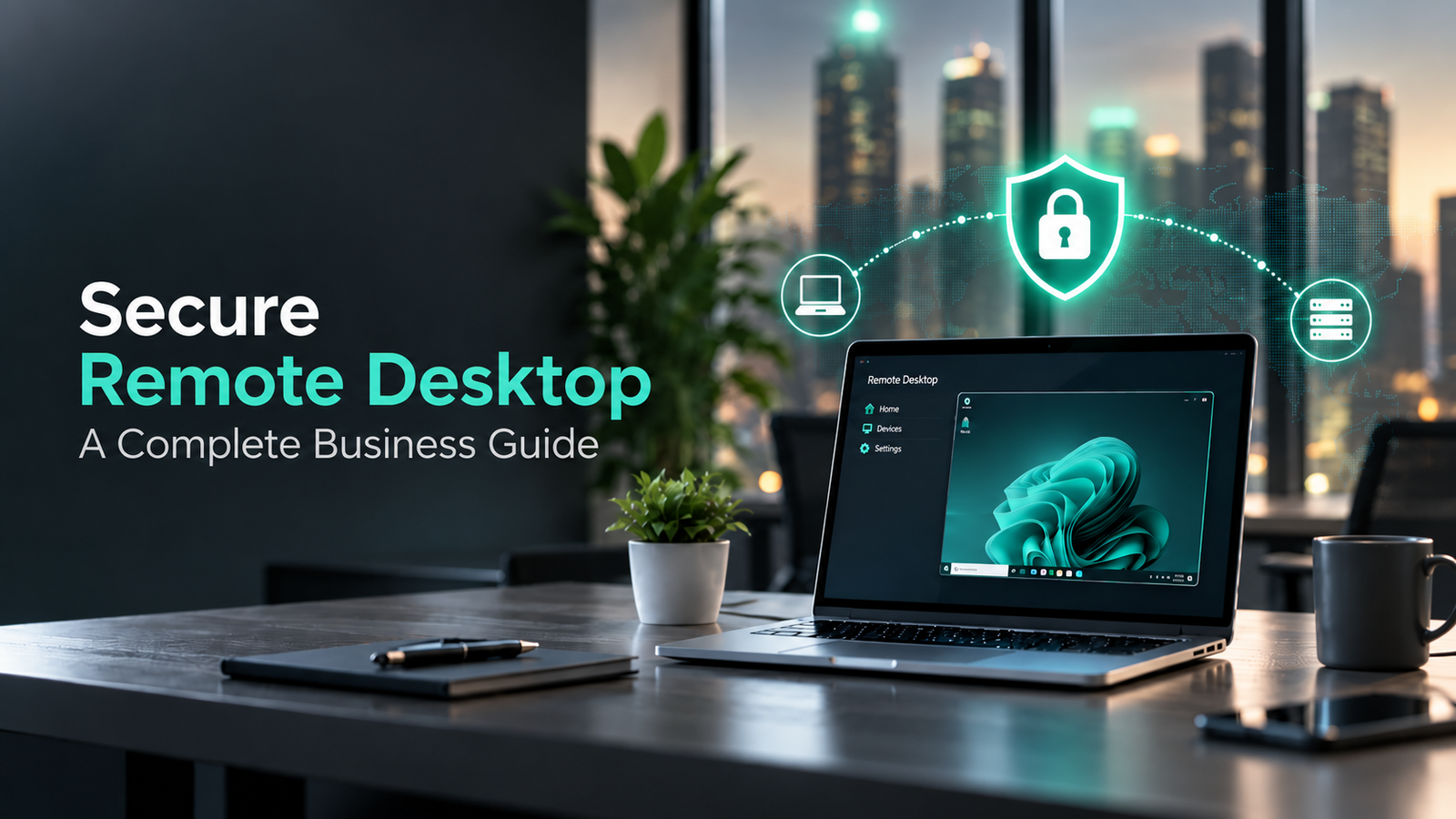
Remote work has become a permanent part of modern business operations. Whether employees are accessing business applications from home, managing cloud servers, supporting customers remotely, or working with accounting software like QuickBooks, Remote Desktop technology plays a crucial role in maintaining productivity and flexibility.
However, with convenience comes responsibility. Remote Desktop Protocol (RDP) remains one of the most targeted services by cybercriminals worldwide. Attackers continuously scan the internet searching for vulnerable Remote Desktop connections that can be exploited through weak passwords, outdated systems, or poor security configurations.
A successful Remote Desktop breach can result in ransomware infections, stolen data, financial losses, compliance violations, and prolonged business downtime.
The good news is that securing Remote Desktop does not require complex enterprise-level infrastructure. By implementing the right security measures and following proven best practices, businesses can significantly reduce risks and create a secure remote working environment.
In this comprehensive guide, we'll explain everything you need to know about securing Remote Desktop and protecting your organization from evolving cyber threats.
What Is Remote Desktop Protocol (RDP)?
Remote Desktop Protocol (RDP) is a proprietary protocol developed by Microsoft that allows users to remotely connect to another computer, workstation, or server over a network connection.
Using Remote Desktop, employees and administrators can:
- Access office computers and files from home or remote locations
- Manage cloud-hosted applications and dedicated servers
- Support remote employees through instant help desk assistance
- Access business files and shared storage securely
- Perform server maintenance and administrative updates
- Run accounting and ERP software (such as QuickBooks, Sage, or SAP) remotely
- Enable flexible hybrid work models for global teams
Although RDP provides exceptional flexibility and convenience, it can also create critical security vulnerabilities if left unmanaged or exposed to the public internet.
Why Is Remote Desktop a Major Security Risk?
Cybercriminals actively target Remote Desktop services because they often serve as a direct gateway into a business network. Unlike phishing attacks, which rely heavily on human error, attackers can automate RDP attacks using bots that continuously scan the internet for exposed servers.
When attackers discover an unprotected Remote Desktop connection, they typically launch:
- Brute-force password attacks: Automated scripts trying millions of password combinations
- Credential stuffing attacks: Using username/password pairs stolen from previous dark web breaches
- Exploitation of software vulnerabilities: Targeting unpatched Windows vulnerabilities
- Malware & Ransomware deployment: Silently injecting payloads across all network shares
- Data exfiltration: Stealing sensitive customer and financial records for double extortion
- Network infiltration: Moving laterally to compromise domain controllers and backup systems
Common Threats Against Remote Desktop
1. Brute-Force Attacks
Hackers utilize specialized tools to rapidly guess common usernames and passwords (such as admin, administrator, or user) until access is granted.
2. Credential Theft
Attackers acquire compromised login credentials from dark web marketplaces. If employees reuse passwords across personal and work accounts, the risk increases exponentially.
3. Ransomware Infiltration
Once attackers gain entry via RDP, they disable antivirus protections, delete shadow copies, and execute ransomware to lock down the entire enterprise.
4. Vulnerability Exploitation
Unpatched Remote Desktop services and legacy Windows versions contain known vulnerabilities that allow attackers to bypass authentication entirely.
5. Insider Threats
Dormant accounts belonging to former employees or third-party contractors can be misused if permissions are not promptly revoked upon departure.
12 Proven Best Practices to Secure Remote Desktop
1. Enable Multi-Factor Authentication (MFA)
Multi-Factor Authentication is the single most effective defense for Remote Desktop access. Even if an attacker cracks or buys a user password, they cannot proceed without the secondary authentication token (such as an authenticator app, hardware key, or biometric verification).
2. Enforce Strong Password Policies
Require complex passwords of at least 12–16 characters containing uppercase, lowercase, numbers, and special symbols. Prohibit common dictionary words and regular password reuse.
3. Restrict Access Through Firewalls & IP Whitelisting
Never allow unfiltered RDP connections from the global internet. Configure firewalls to allow RDP connections only from trusted office IP addresses or dedicated VPN ranges.
4. Change the Default RDP Port (Port 3389)
By default, Microsoft Remote Desktop listens on TCP/UDP Port 3389. Changing the listening port to a non-standard port helps reduce noisy automated port scanning.
5. Enable Network Level Authentication (NLA)
Network Level Authentication requires connecting clients to authenticate before a full Remote Desktop session is initialized, saving server resources and thwarting denial-of-service attempts.
6. Use a Secure VPN for Remote Access
Place your Remote Desktop servers behind a Virtual Private Network (VPN). Users must establish an encrypted VPN tunnel before they can view or access the RDP gateway.
7. Keep Operating Systems & Software Patched
Enable automatic security updates and deploy Windows server patches promptly to resolve discovered vulnerabilities before attackers can exploit them.
8. Implement Account Lockout Policies
Configure account lockout rules (e.g., lock accounts after 5 failed attempts for 15–30 minutes) to immediately halt automated brute-force attacks.
9. Continuously Monitor Login Activity & Logs
Track failed login spikes, unusual access hours, and logins from unexpected geographical regions using Security Information and Event Management (SIEM) tools.
10. Limit Administrative Privileges (Principle of Least Privilege)
Ensure regular users do not possess administrative permissions. Separate daily user accounts from privileged administrative credentials.
11. Promptly Disable Inactive & Legacy Accounts
Perform regular account audits to deactivate accounts for former employees, seasonal contractors, and unused service accounts.
12. Encrypt Remote Desktop Connections
Deploy strong SSL/TLS certificates for Remote Desktop Session Hosts to ensure all keystrokes, mouse movements, and screen data are encrypted in transit.
Common Remote Desktop Security Mistakes to Avoid
| Security Mistake | The Cyber Risk | Recommended Solution |
|---|---|---|
| Exposed Port 3389 | Automated bot scanning and constant attacks | Place RDP behind a VPN and change default port |
| Weak / Default Passwords | Easy brute-force entry in minutes | Mandate 14+ character complex passwords |
| No Multi-Factor Authentication | Compromised credentials mean instant breach | Enforce mandatory MFA for all remote users |
| Delayed Patching | Exploitation of known Microsoft zero-days | Automate weekly or immediate patch deployments |
| Unmanaged Dormant Accounts | Unauthorized backdoor entry by former staff | Implement strict user offboarding protocols |
Advanced Remote Desktop Security Strategies
- Endpoint Detection and Response (EDR): Continuously monitors endpoints for suspicious behavioral anomalies and automatically quarantines infected devices.
- Zero Trust Architecture: Enforces continuous verification—"never trust, always verify"—for every device and user attempting access.
- SIEM & Real-Time Alerting: Aggregates audit logs across servers to alert security teams to brute-force spikes or credential misuse immediately.
Why Choose Mounteko Global Solutions for Secure Remote Access?
At Mounteko Global Solutions, we specialize in delivering enterprise-grade cloud hosting, remote desktop hardening, dedicated server management, and 24/7 cybersecurity protection tailored to modern businesses.
- Hardened Remote Desktop & Cloud Hosting Environments
- Managed Firewalls and Enterprise VPN Gateways
- Multi-Factor Authentication (MFA) Integration
- 24/7 Security Operations Center (SOC) Monitoring
- Automated Daily Backups & Disaster Recovery
- QuickBooks, Sage & ERP Cloud Hosting
Frequently Asked Questions (FAQs)
Q1: Is Remote Desktop secure enough for business use?
Yes. When properly configured behind a VPN with MFA, NLA enabled, and proactive monitoring, Remote Desktop provides a highly secure work environment.
Q2: What is the biggest risk of using RDP?
The most common risks are brute-force attacks on weak passwords, unpatched system vulnerabilities, and lack of MFA leading to ransomware deployment.
Q3: Should businesses expose RDP directly to the public internet?
No. RDP should never be exposed directly to the public internet. It should always be protected behind an encrypted VPN, an RDP Gateway, or an IP whitelist.
Q4: How often should Remote Desktop servers be updated?
Security updates and critical patches should be installed as soon as they are released by Microsoft.
Q5: Is Multi-Factor Authentication really necessary for RDP?
Yes. MFA stops over 99% of automated account takeover attacks, making it a mandatory requirement for modern business security.
Conclusion
Remote Desktop has become an indispensable business tool, but securing it requires a proactive, multi-layered approach. By enforcing MFA, restricting firewall access, utilizing secure VPNs, and keeping systems updated, organizations can protect their sensitive data while empowering a productive and flexible remote workforce.
To learn more about securing your remote infrastructure or migrating to high-performance managed cloud hosting, visit Mounteko.com today.